Editor
The Notarium editor always edits the raw Markdown file — the single source of truth. Whatever you do, plain Markdown lands on disk with no cruft: no re-escaping, no re-normalizing lists, no collapsing the frontmatter. This is what sets Notarium apart from rich editors that store a normalized tree and rebuild the file on save — a round trip that loses some of the original formatting. Under the hood it's CodeMirror 6: a formatting toolbar, keyboard shortcuts, multi-cursor, and syntax highlighting.
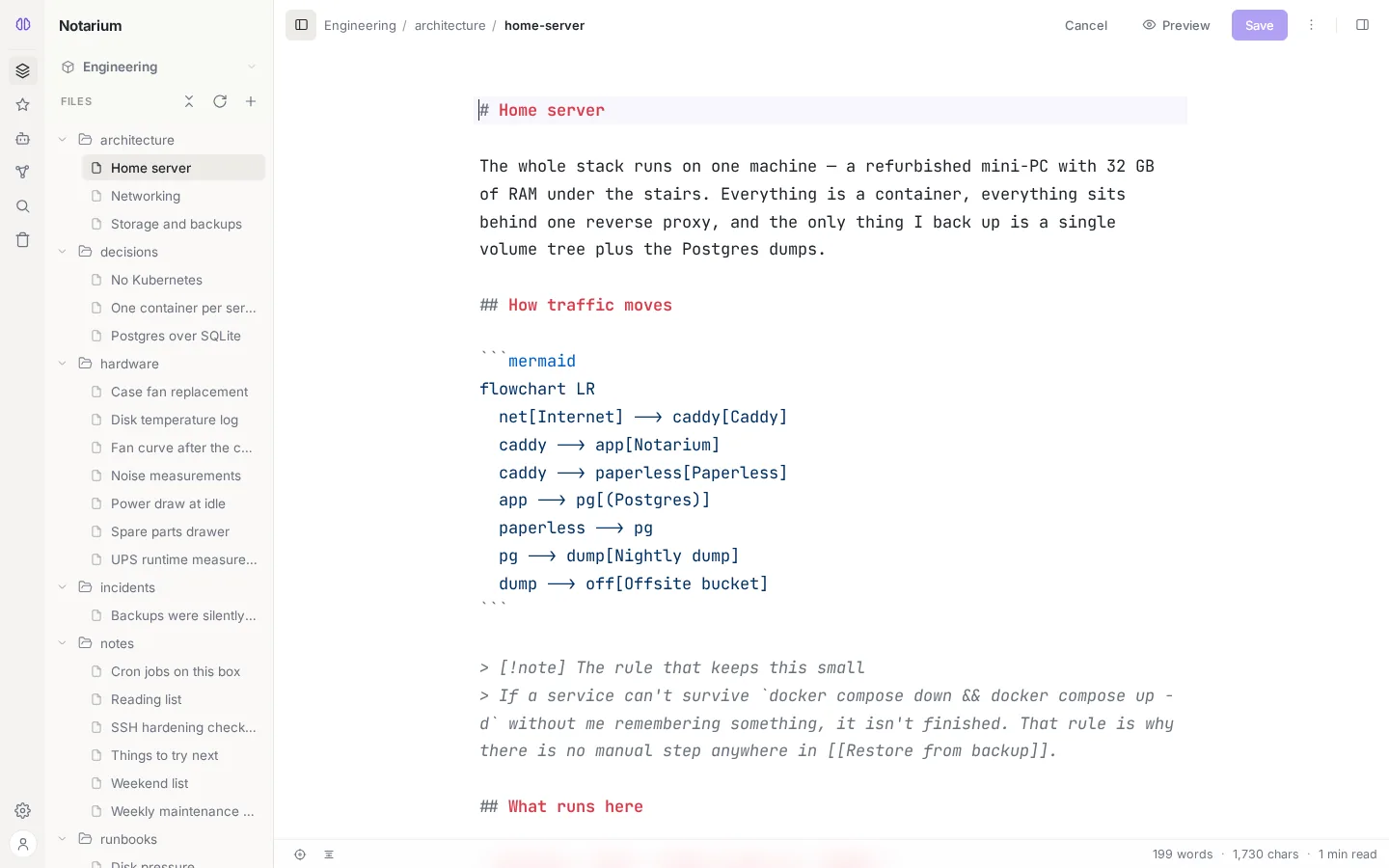
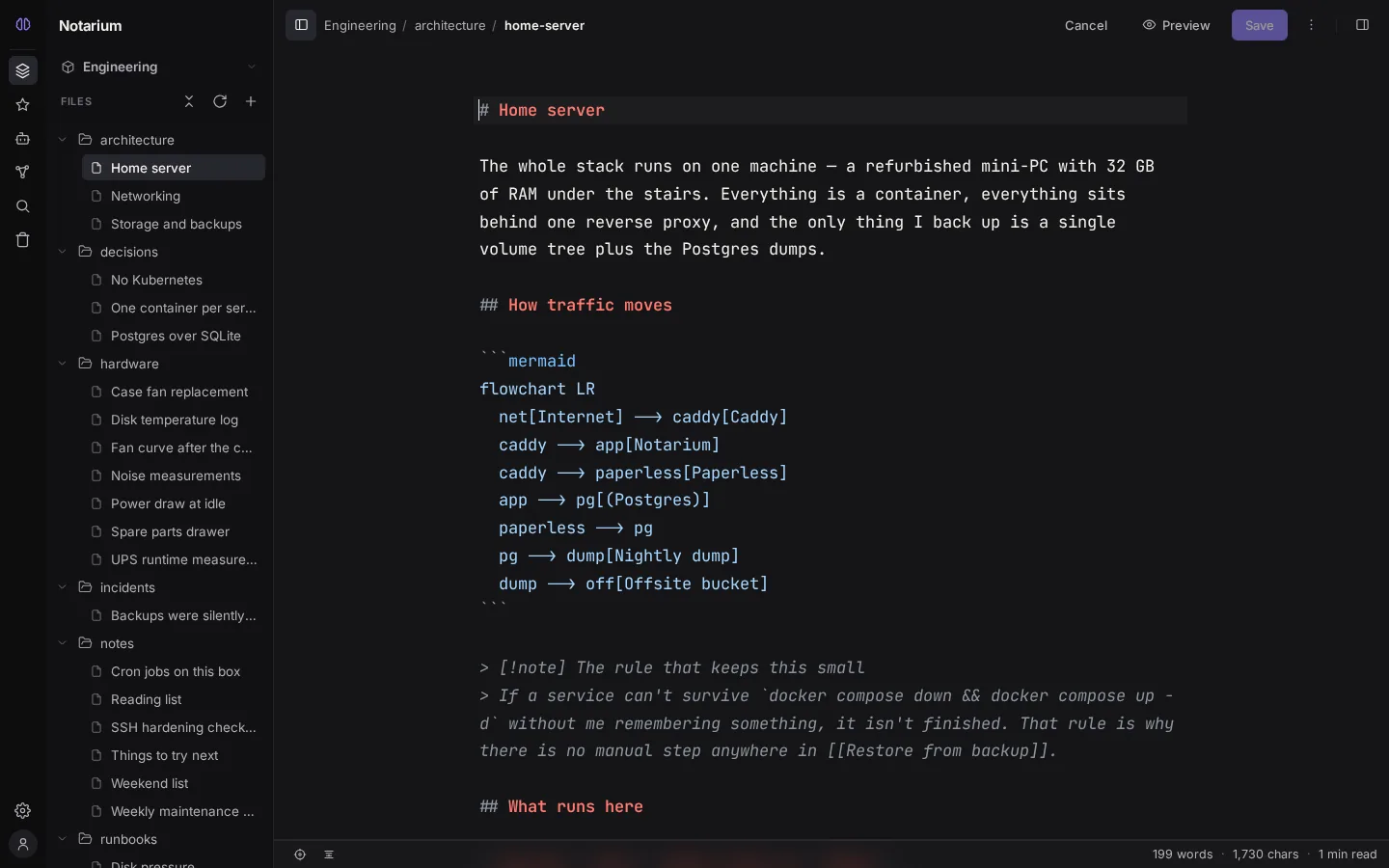
The title is the first line
There's no separate "Title" field. A note's title is its leading # H1, which you edit right in the document as the first line. A new note opens on a # line with the cursor sitting on the title.
- If there's no leading
# H1, the title becomes the first non-empty prose line — a quick jot won't turn into "Untitled." - But if the document opens with a structural block (a code fence, list, quote, table, or an H2-or-lower heading) and no title is set, the note won't save without a title: that way the first line of code or a list doesn't silently leak into the title.
Writing modes
On top of the note's single body sit writing modes — a personal setting for how the text looks while you edit it. A mode doesn't change the file's bytes: it's decoration over an unchanged string, so switching modes and saving are byte-for-byte identical.
| Mode | What it shows |
|---|---|
| Source | Raw Markdown as-is: monospace font, themed syntax highlighting. You edit the markup itself. |
| WYSIWYM | "What you see is what you mean": the text is styled (headings larger, bold in bold, quotes and code with a background), but the Markdown markers stay on screen, dimmed — a semantic scaffold. |
Switch it in Settings → Appearance → Editor mode (a Source / WYSIWYM segmented control). The choice is personal, stored in the browser; the default is Source.
The Preview button in the top bar shows the note's final HTML render (the same one you see in reading mode) in any mode, without saving. "How I work" (Source/WYSIWYM) and "editing vs. viewing" (Edit/Preview) are independent.
Focus and typewriter
On top of any mode sit two independent helpers for long-form text:
- Focus dims everything except the active unit under the caret. You pick the granularity yourself — Sentence / Line / Paragraph. Shortcut:
⌘/Ctrl+Shift+F. - Typewriter keeps the line with the caret vertically centered — the document scrolls beneath it. Shortcut:
⌘/Ctrl+Shift+Y.
Both are personal toggles that survive a reload. You turn them on in three ways: with the shortcut, with two icons in the editor status bar, and through Settings → Appearance (where you also pick the Focus granularity).
Saving and conflicts
Save a note with Ctrl/Cmd+Enter. Notarium guards against losing unsaved work and resolves a conflict when the same note is changed concurrently from another tab or by an AI agent.
An agent over MCP reads and writes the same Markdown body a human does — the writing mode has nothing to do with it; it's purely client-side. For more on humans and agents working together, see Humans and agents; for version history, see Versioning.
See also: Reading and appearance — the font and size the editor inherits — and the Keyboard shortcuts reference.